



Last Issue: Claude Code for Cloud Security: What you should know 🌩️
Next Issue: Are Cloud & Security Certs still worth it?
We’re going to stand up Odysseus: An open source, self hosted AI app, get it talking to a model, and then walk every feature one by one.
I want to run it with a local model rather than a cloud API. With everything we’re putting into these tools now, I think local is the future, and security is the why.
Want to follow the source as we go? Start here: github.com/pewdiepie-archdaemon/odysseus.
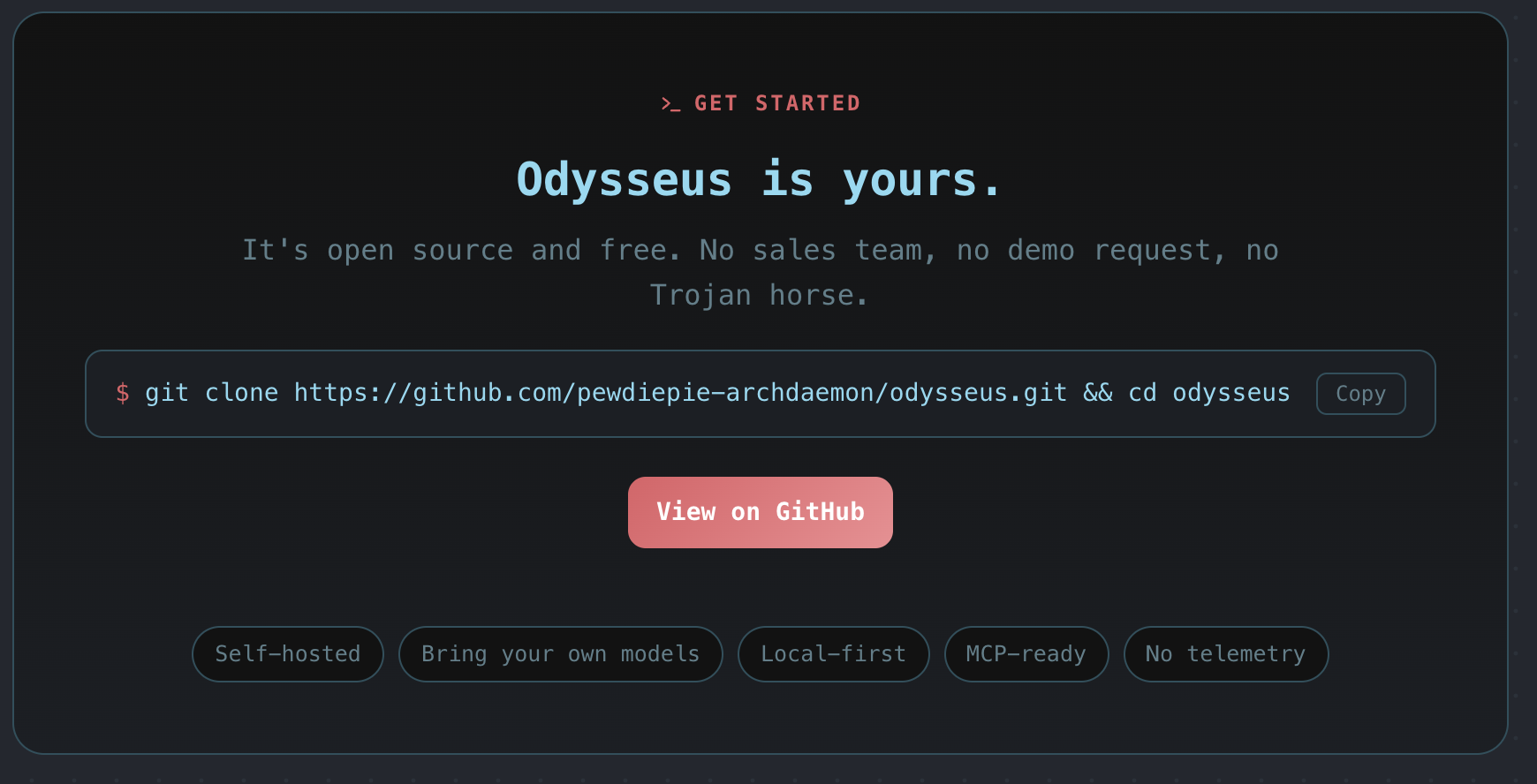
open source, free, bring your own models with no telemetry.
1. Getting it running
The whole thing ships as a set of Docker containers, so setup is just a few commands. Open a terminal in whatever folder you keep projects in.
Clone the repo and move into it:
git clone https://github.com/pewdiepie-archdaemon/odysseus.git && cd odysseus
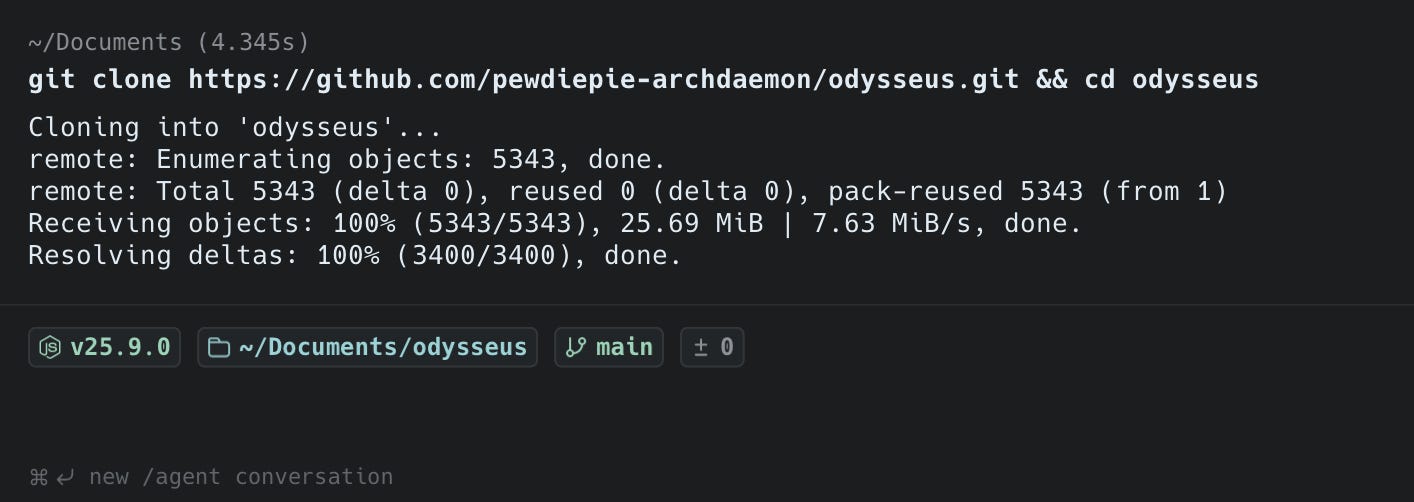
Clone done, you’re now sitting inside the odysseus folder on the main branch.
Make sure your Docker engine is running (open Docker Desktop), then build and start everything in the background:
docker compose up -d --build
First run pulls a few images, the chat app itself plus its helpers: searxng (search), chromadb (the memory/vector store), and ntfy (notifications). Give it a minute.

Compose pulling the supporting containers on first build.
On first boot it creates an admin user and prints a temporary password into the logs. Grab it with:
docker compose logs odysseus

Look for the “Initial admin user created” line — the temporary password is right under it.
Now open the app in your browser and sign in as admin with that password.
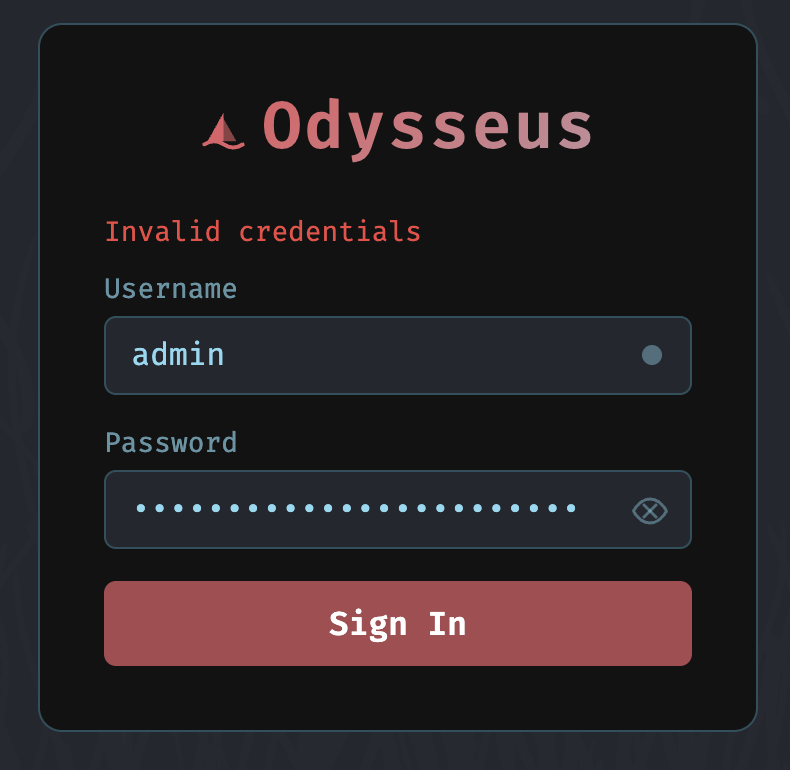
The login screen. Username admin, password from the logs.
2. A quick look around
You land in the chat view with the full sidebar on the left: Chat, Search, Email, Tools, Brain, Calendar, Compare, Cookbook, Deep Research, Gallery, Library, Notes, Tasks. That sidebar is the giveaway that this is a complete orchestration platform, not just a chat box. We’ll come back to the headline features later.
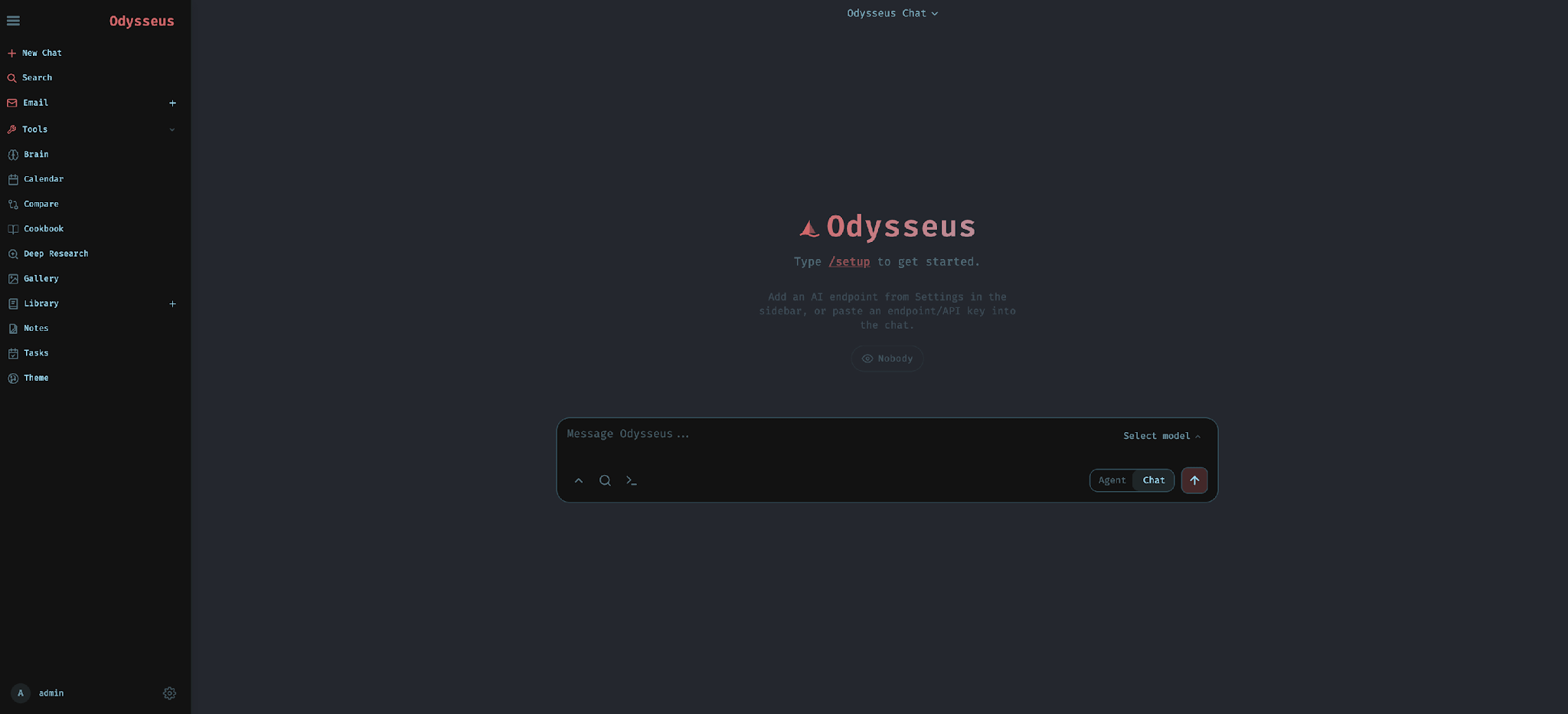
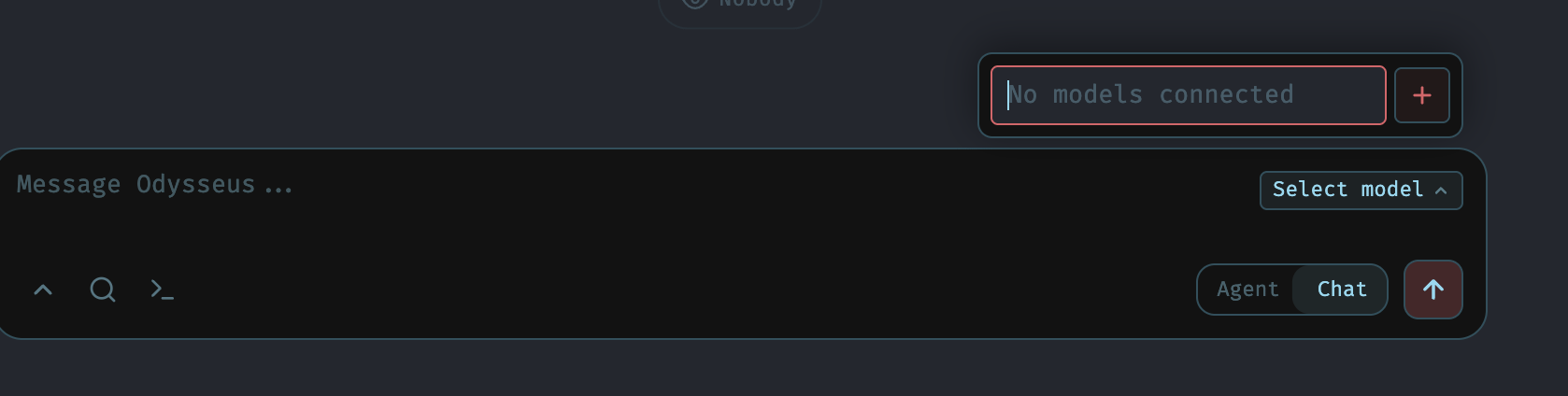
The home view. Note the prompt: type /setup to get started, or just paste an endpoint in chat.
Right now though, the model picker says it all: “No models connected.” Nothing can happen until we give Odysseus a brain to talk to. That’s next.
3. Adding a model
Head into Settings from the sidebar. There’s a lot in here, you can set your default search engine for deep research and pick model defaults for different features, but let’s stay focused on the one job that matters first: adding a model. Two roads, cloud or local.
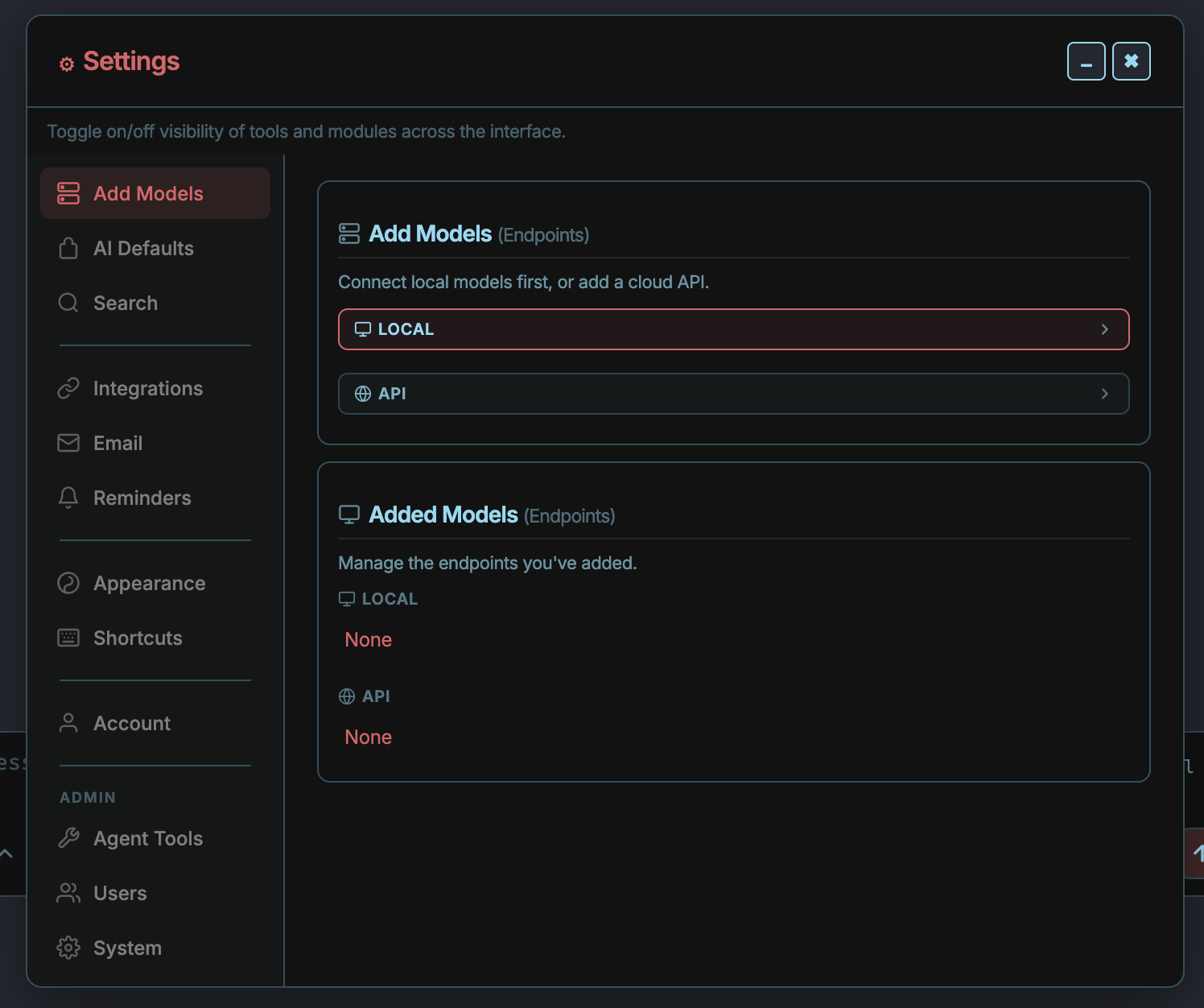
Settings → Add Models. Two endpoint types: LOCAL and API. Right now both read “None.”
The easy road: a cloud model
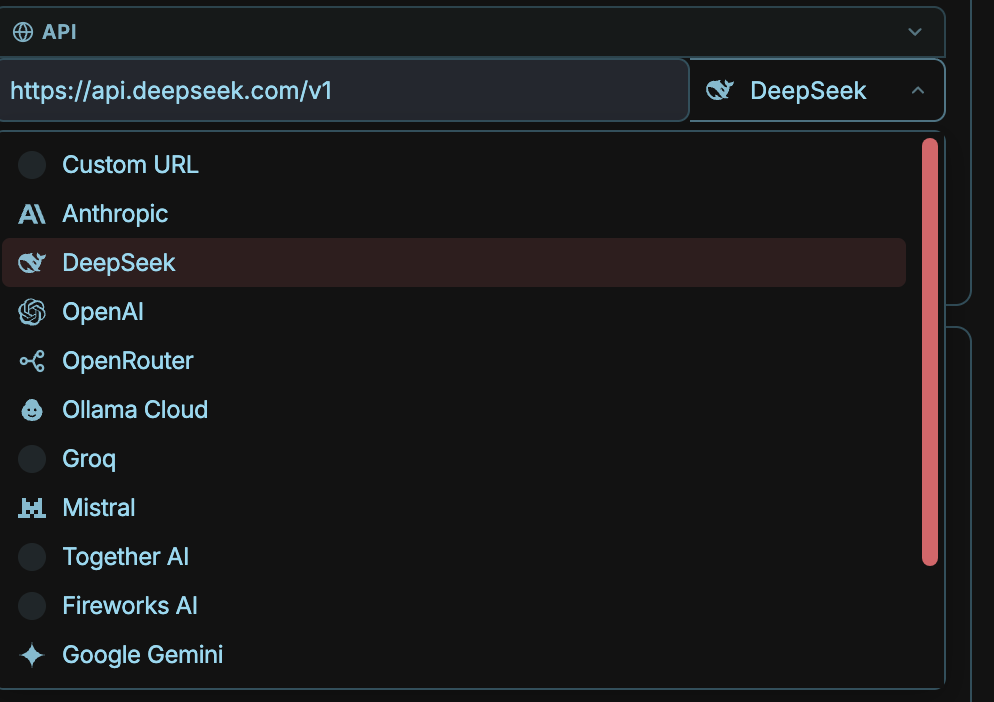
Adding a cloud model is about as simple as it gets. We’ve done this a million times. Open the API section, pick your provider from the dropdown, and it fills in the right API endpoint for you. Then paste in the key you got from that provider.
The road I care about: a local model
Since the whole point here is security, I want to run a model on my own machine. For me that’s gemma4:26b. You’ll want it set up and serving before this step, I have a separate guide on doing that with Ollama here:

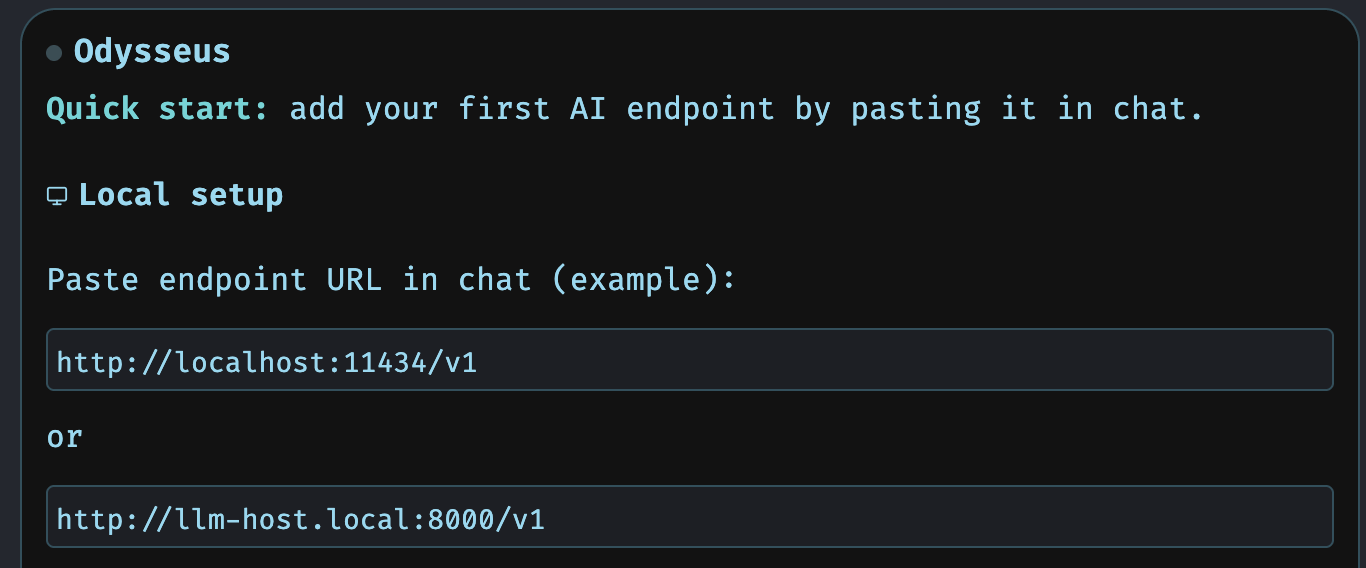
Once your local model is being served, adding it to Odysseus is just one line. Open the LOCAL endpoint and paste:
http://host.docker.internal:11434/v1
(Odysseus even hints at this in its quick-start, on your own machine it’s the http://localhost:11434/v1 address; from inside a container you reach the host with host.docker.internal instead.)
4. Wait?! What actually runs the model?
A 17 GB model like gemma4 isn’t a program you “open.” To actually generate text from it, something has to do a genuinely hard job:
Load 17 GB of weights into memory (RAM or GPU memory) and keep them there.
Run the math, billions of matrix multiplications per response, using your Mac’s GPU/Neural Engine efficiently.
Manage the file formats, tokenization, quantization, context window, and the rest.
That whole job is called an inference engine, and it’s a serious piece of engineering. Ollama is that engine (built on top of llama.cpp). Its entire reason to exist is to do this one hard thing well.
Odysseus is a different kind of app. It’s an orchestration / chat app — its job is everything around the model:
the chat UI, login, and sessions
memory and RAG/search (that’s the chromadb + searxng containers)
tools, scheduling, email, MCP servers
To get an answer, Odysseus doesn’t run the model itself: it just fires an HTTP request at the inference engine and gets text back:
Odysseus ──“here’s the prompt”─> Ollama ──runs gemma4─> “here’s the answer”
The whole reason the local setup is one little URL: you’re just pointing the orchestrator at the engine.
5. A word on security (read this before you play)
Before we start poking around, I highly recommend reading the project’s security notes: github.com/pewdiepie-archdaemon/odysseus#security-notes.
We’re not going to change any of these settings — but this is a fantastic learning opportunity. Take one line as an example:
“Use SECURE_COOKIES=true when Odysseus is served through HTTPS by a trusted reverse proxy or private access gateway.”
Ask yourself: why would that be? Do you know what a reverse proxy is? Sitting with questions like that, instead of just copy pasting and moving on, is exactly the approach that turns a fun weekend project into something genuinely worthwhile. Keep doing projects this way and before you know it you’ve built up a huge library of knowledge.
6. The feature tour
With a model connected, here’s the good stuff.
Chat: Talk to any model
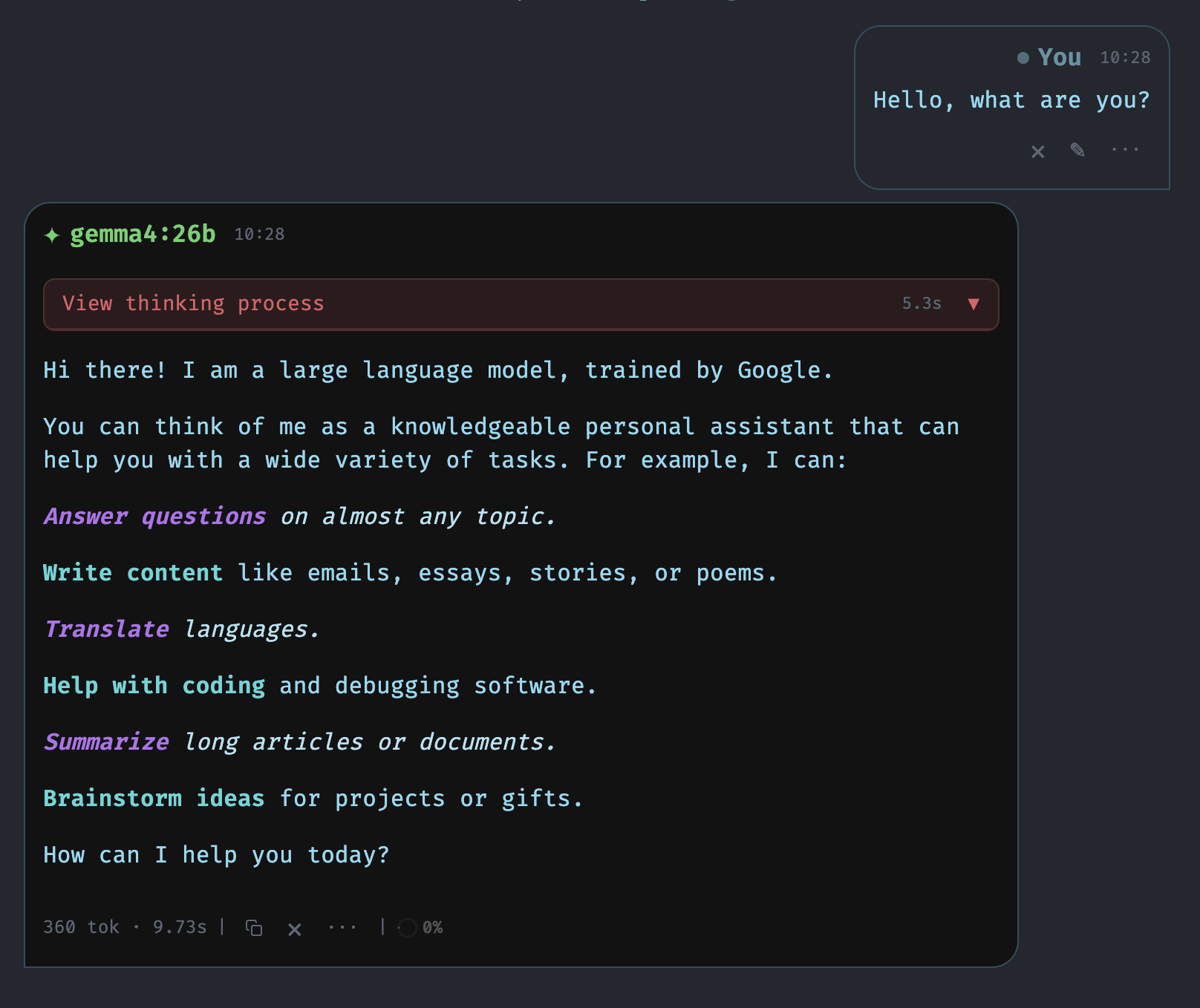
Chat with any local model or API; adding them is as simple as we just saw. Here’s gemma4:26b answering a friendly “Hello, what are you?” — running entirely on my own hardware.
Cookbook: Right sized models for your machine
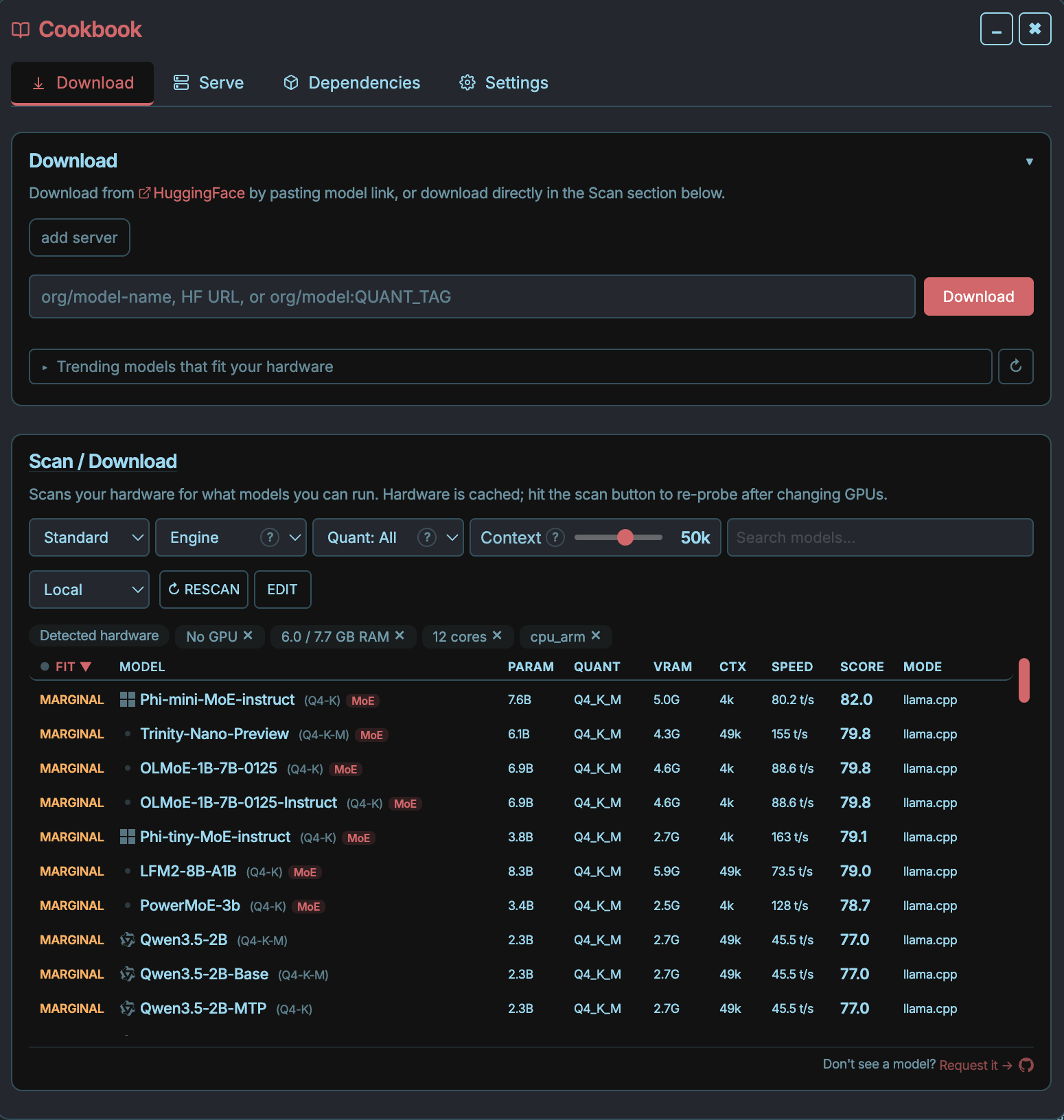
Cookbook scans your hardware, recommends models that’ll actually run well, and lets you download and serve them with a click. Easy. This is where you (or I) can see which models suit the machine in front of us, with a clear read on VRAM, context, and speed before committing to a download.
Deep Research: Multi-step reports
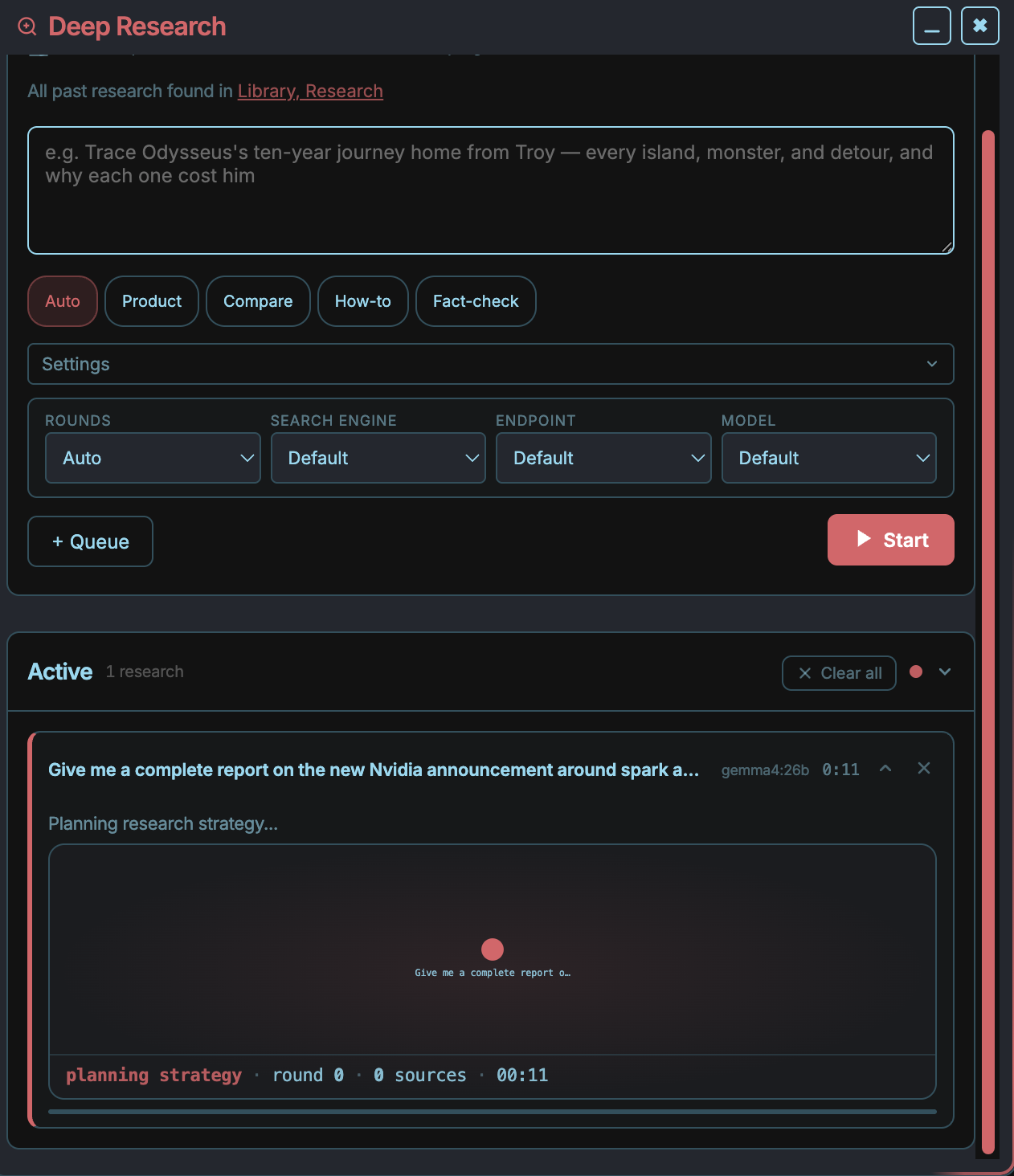
Deep Research runs multi-step jobs that gather, read, and synthesize sources into a clean visual report. You can steer the run (Auto, Product, Compare, How-to, Fact-check) and even pick the search engine, endpoint, and model per run. I kicked off: “Give me a complete report on the new Nvidia announcement around Spark and its new line of CPUs.”
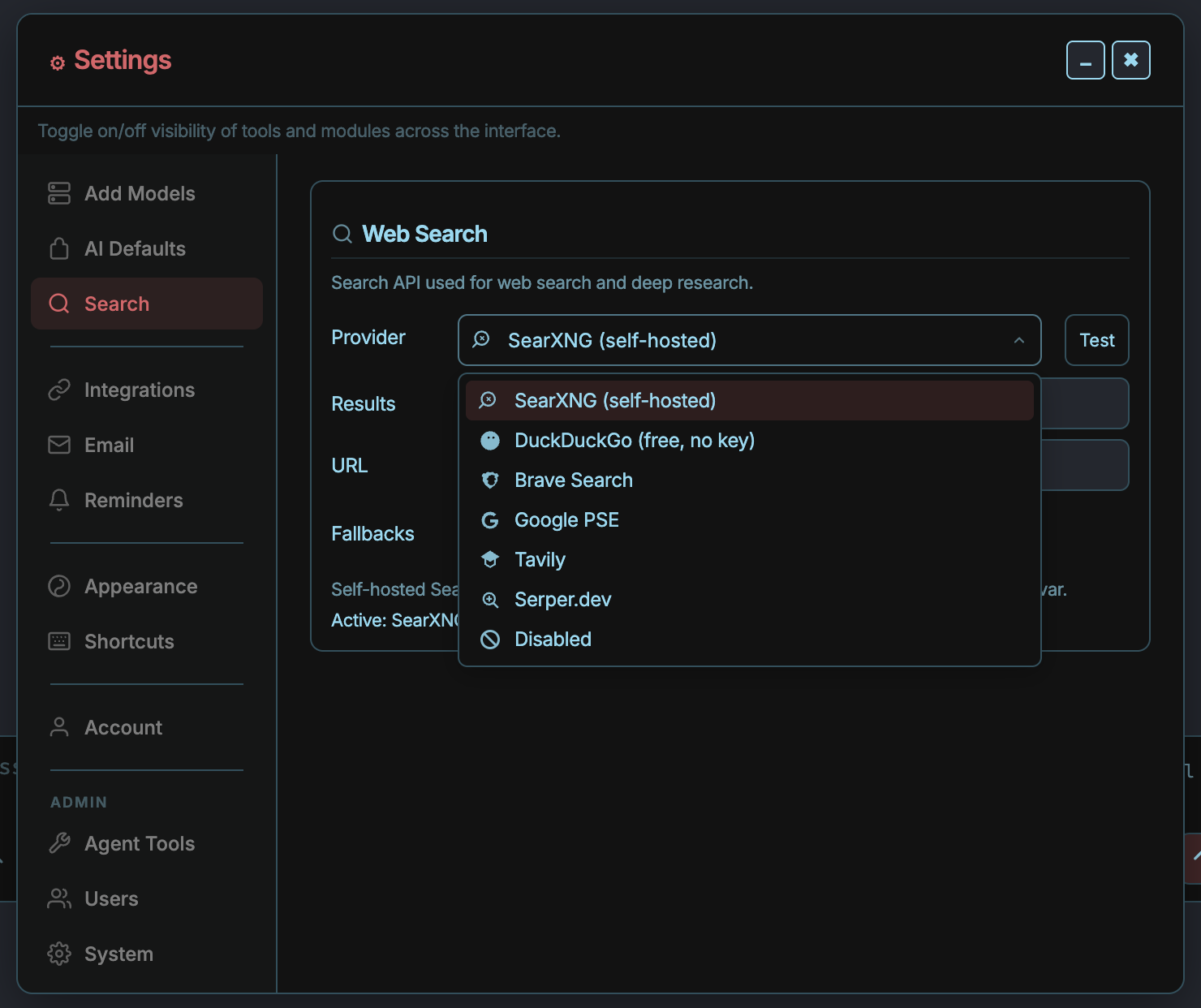
And yes, because we set the search engine ourselves, the whole pipeline stays self-hosted too. Odysseus defaults to SearXNG (self-hosted), with DuckDuckGo, Brave, Tavily and others available if you’d rather.
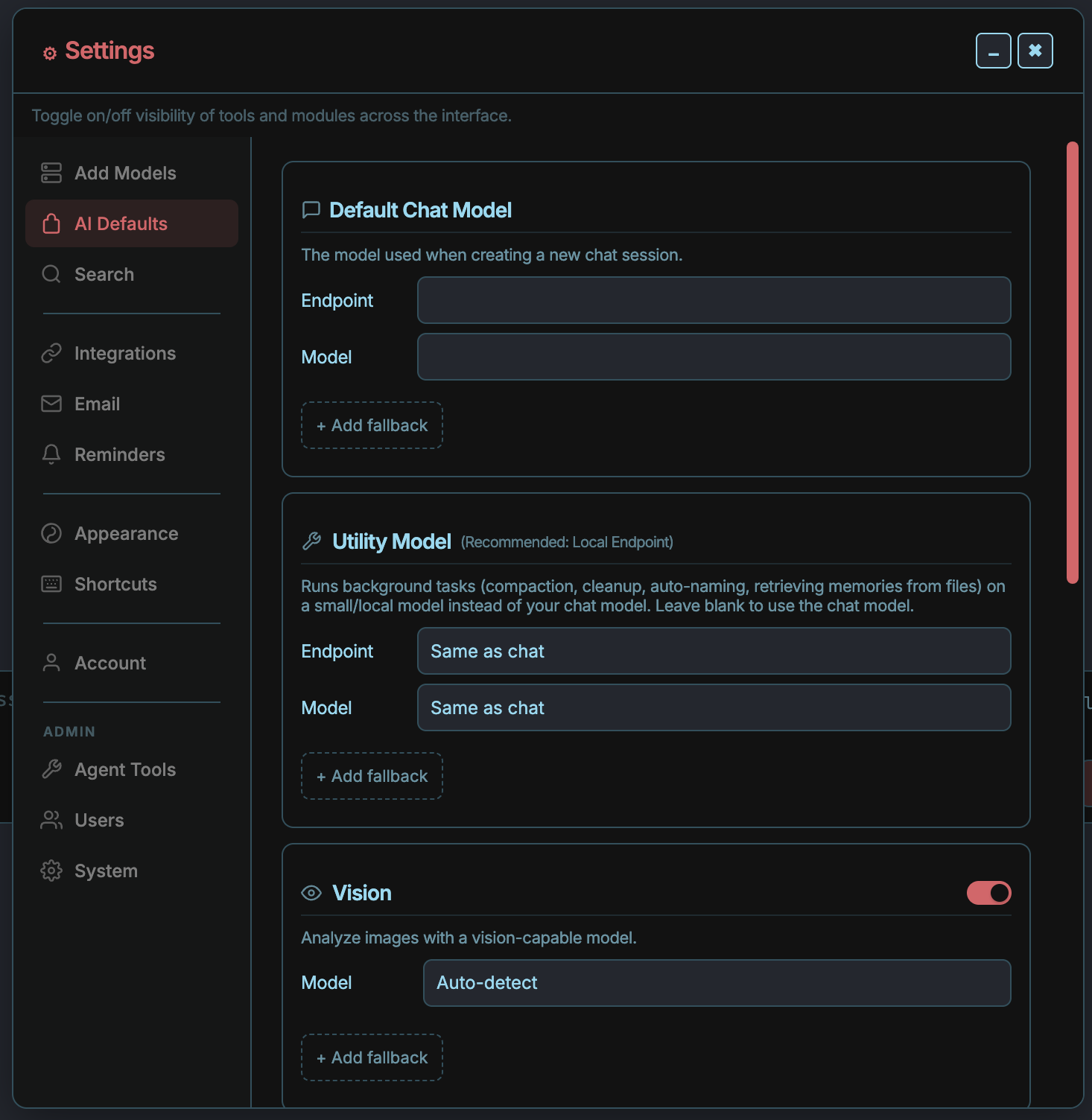
One more settings note worth knowing: under AI Defaults you can set the default chat model, a smaller “utility” model for background tasks like memory and auto-naming, and even a vision model for images. Set it once and forget it.
Explore and have fun
I’ve covered the basics here. I encourage to take a look at all the other features it has to offer and really take the time to understand what’s happening at each stage. Understanding how to correctly use an AI orchestration platform is soon becoming an non negotiable skill in Cloud and Security.
W J Pearce - Cyber Notes: Keep it secure, keep it light hearted
Calm, practical & self paced training to help you break into Cloud Security & DevSecOps
👉 Pre-order here: techtwoforty.com
This is really useful as alwaysl. I've thought for a while local is the way to go. With governments getting increasingly authoritarian it can only be a matter of time when building on fear of such things as Mythos, we either have to have a licence to work with LLMs or use a government version. Either way the smart option is to work local and get used to it. Thats my ten cents anyhoo...
MCP and local tools are where the setup stops being only convenience. The moment an agent can reach files, commands or services, the interesting questions are permission scope, reversibility and the evidence trail. I wrote about that shift here: https://petermccannstrain.substack.com/p/tools-give-models-hands