Last Issue: Agentic AI Hacking Project 🤖
Next Issue: Claude Code for Cloud Security: What you should know 🌩️
Quick one this week…
I want to show you how to run Gemma 4, Google’s free open source model, locally.
This is cool enough on its own, and running local AI models is something you should definitely do at least once before you deploy them into the cloud. But for my use case here, it’s to avoid hitting those pesky Claude code limits every two minutes.
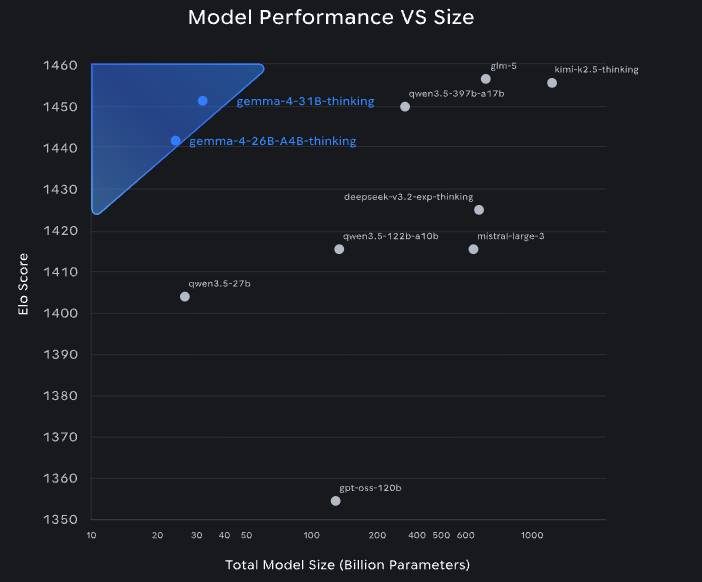
You don’t have to use Gemma 4 here, but if you take a look at the recent benchmarks compared to some of the bigger models, it’s really worth at least trying it out.
Step One: Install Claude Code
You’ll of course need to have Claude Code installed, follow this guide if you haven’t:

Step Two: Install Ollama
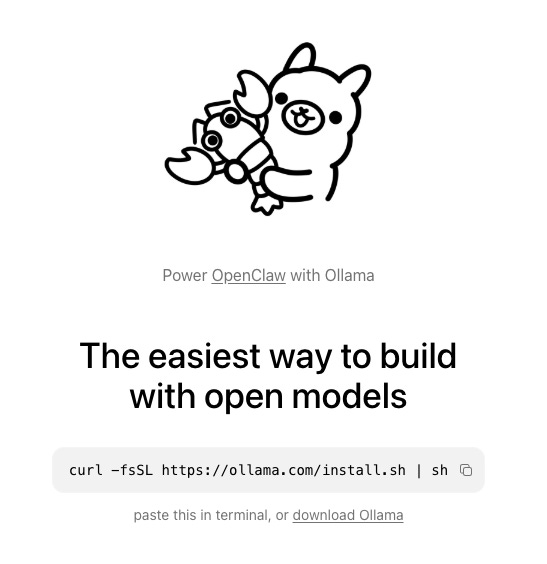
You can do this with the single command, here: https://ollama.com/
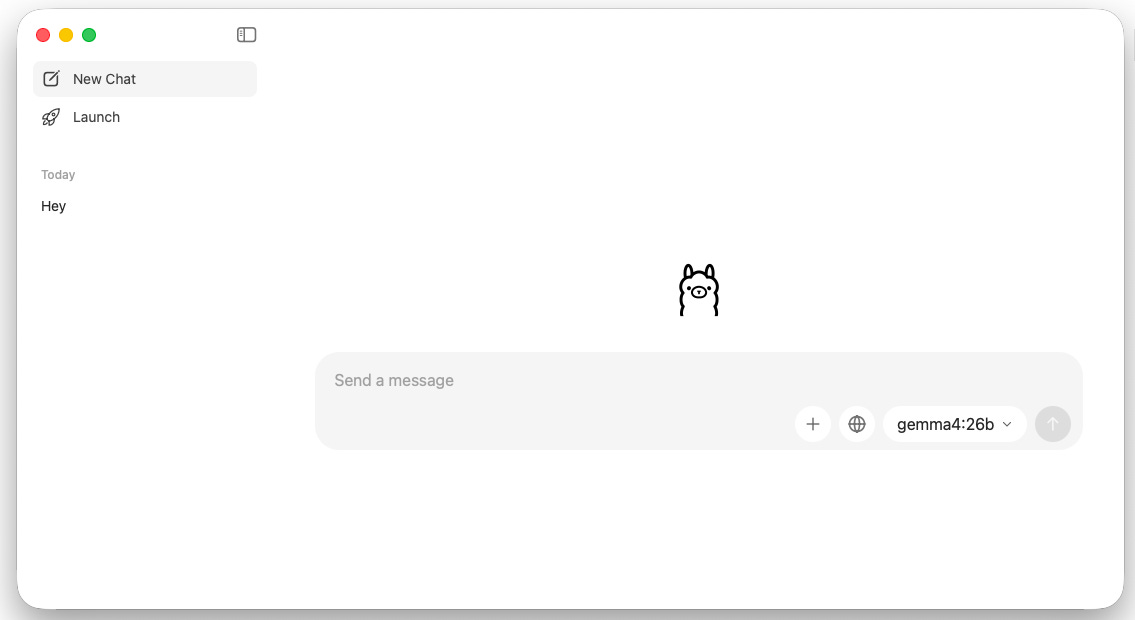
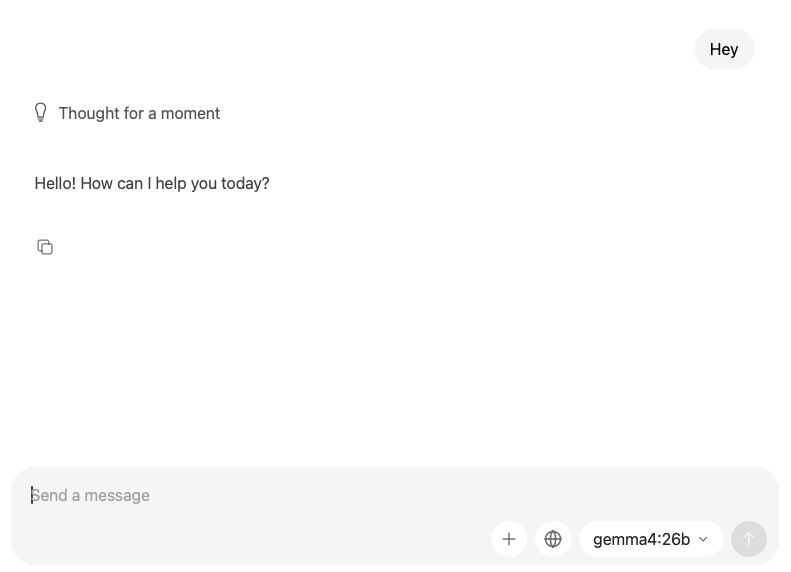
Once installed you should see a blank chat terminal with the model selector the bottom right
Step Three: Download Gemma 4
Now, the Gemma 4 model comes in quite a few sizes, and we want to get the right one for our machine. This will obviously depend on what hardware you’re running.
I have a Mac mini M4 Pro here, so I pasted my system specs into Claude and asked it to recommend the best model for my setup.
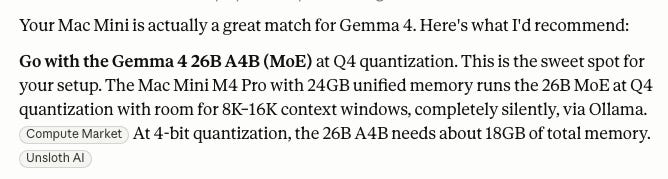
So all we need to run now is:
ollama run gemma4:26bStep Four: Validation
You can now navigate back to Ollama and you should see the Gemma4 model we downloaded in the bottom right:"
Step Five: Running with Claude Code
We now want to configure this to be the default model with Claude Code. So open a new terminal and run:
ollama run gemma4:26b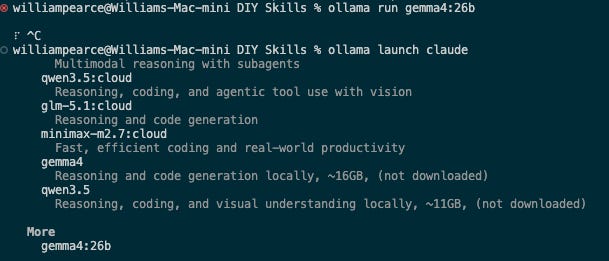
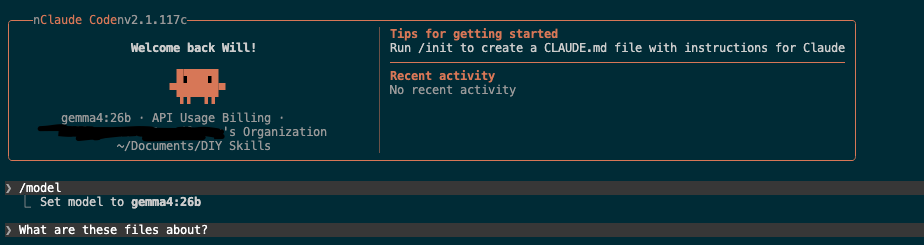
Select the model from more and then start claude code and run /model selecting Gemma4
Congratulations 🎉
You are now running a local AI Model and you’ve got Claude Code using it as the default.
W J Pearce - Cyber Notes
Calm, practical & self paced training to help you break into Cloud Security & DevSecOps
👉 Pre-order here: techtwoforty.com