



Reposting this from the archive 📖
It’s one not many people saw through to the end, and it’s well worth doing.
It’s about 18 months old, so a couple of the tools have moved on, but the core still stands up

By the End of This Newsletter, You’ll:
✅ Know exactly what Hugging Face is and why it’s important in the AI space.
✅ Learn how to download and run a model locally - Deepseek-R1 🐳
✅ Understand how to use the Transformers library - Level 1 For building AI applications and workflows.
Start here: What is Hugging Face?
Hugging Face is a free platform for AI and machine learning with:
Pre trained models
User friendly APIs
Cloud integration
An open source ecosystem
A vibrant community
It’s the best place to start with AI in my opinion, if you’re looking to move past chatbots.
Let’s take a look:
First things first I encourage you to head over to the website and just start poking around. This is my approach to learning anything, Just get stuck in and if you break something, all the better.

Along the top, you’ll see some interesting tabs. Here’s what they do:
Models: Thousands of pre trained models for tasks like text generation, image recognition, and more.
Datasets: Datasets curated for AI training and experimentation, covering everything from language to images.
Spaces: Demos and custom AI apps built by the community, or host your own projects.
Posts: Blog posts, news, and insights from the Hugging Face team and community.
Docs: Documentation to help you get started or troubleshoot like a pro.
Buzzwords Aside: How can I actually use it?
If you’re new to AI, the best starting point is downloading and running a model. This simple step lays the foundation for understanding how AI works.
We’ll start with Ollama, a lightweight tool that makes running LLM’s locally super easy, no coding or cloud setup required.
Head over to Ollama and download:

Run through the set up wizard:

You’ll then be presented with a cmd to run your first model - let’s do this. Open up your terminal and copy pasta the cmd. This command tells Ollama to download and run the specified model, llama3.2

Pulling the model’s data (manifest and other files) may take a while, depending on your internet speed.
We now want to run the model we’ve just downloaded. How well you can run this is hardware dependant. You don't need a GPU to run this model but it will make it faster especially when you have at least 16GB of VRAM.
We can do this by running ollama run llama3.2 Tip: (cntrl + D) if you want to exit.

Easy as that! 🎉
Running a custom model from Hugging Face
This is where the fun starts. Head on over to Models Tab on the hugging face website.
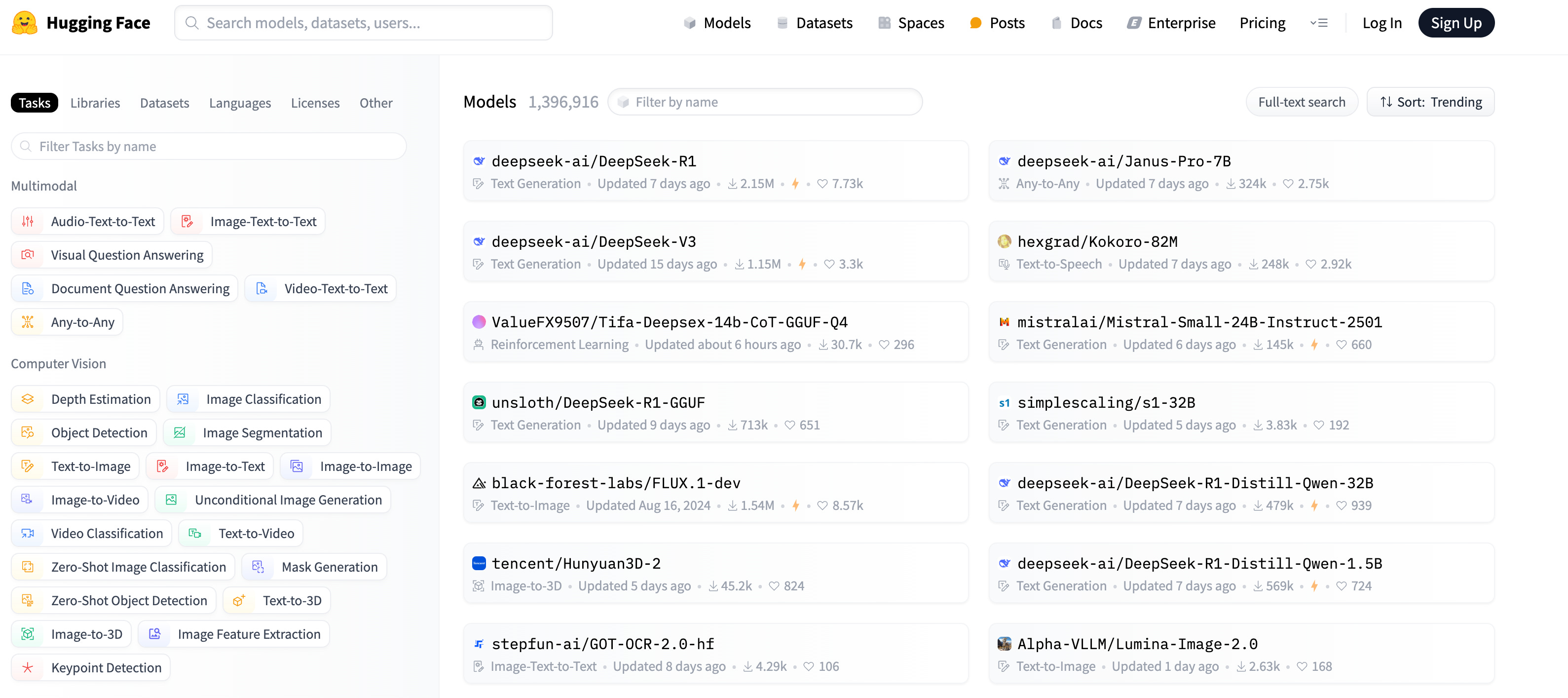
From here we can find some weird and wonderful models to download, lets’s download DeepSeek-R1, you’ve probably heard about Deepseek in the news recently.

We actually need the GGUF version to use with Ollama so go here: DeepSeek-R1-GGUF - GGUF is optimised for: Local inference (no cloud required) and has Faster loading and execution than older formats.

Click on the small square copy button next to the Model Title and paste this into your terminal:
ollama run hf.co/unsloth/DeepSeek-R1-Distill-Llama-8B-GGUFOnce it’s downloaded we can run it with:

Super simple right!? You now know how to find, download and run a model locally from Hugging Face! This is only the start…
Let’s take things to the next level
If you're looking to start and build your own AI powered applications or build and LLM into your existing workflows, this is a great starting point.
In this next part, i’ll get you started with Hugging Face’s Transformers library:
• What Transformers?
• How to install and set up the library.
• How to run your first model as part of a script.
By the end, you’ll be equipped with the skills to start building AI applications, not just using them. Let’s do this!
Step 1: Start a New Python File in Cursor
Open your IDE of choice
Click File > New File.
Name it something like
huggingface_model.py
Step 2: Install Required Dependencies
Before running the script, start a new virtual environment and install the Hugging Face libraries:
pip install transformers torch sentencepiecetransformers: A library that provides pre trained AI models for tasks like text generation, translation, and classification.
torch: A framework that enables deep learning, mainly used for training and running AI models efficiently.
sentencepiece: A tokenizer that breaks text into smaller pieces, helping AI models process different languages
Step 3: Write the Python Script
Paste the following python script into huggingface_model.py:
NOTE: I’ve tried my best to explain the script using comments but I really encourage you to not just blindly paste this script - Try take the time to understand it.
from transformers import AutoModelForCausalLM, AutoTokenizer
import torch

# Step 1: Use a small, lightweight model
model_name = "HuggingFaceTB/SmolLM-135M"

# I ended up taking this out eventually
# Step 2: Set device (MPS for Mac GPU, fallback to CPU)
# device = torch.device("mps") if torch.backends.mps.is_available() else # torch.device("cpu")

# Step 3: Load the tokenizer and model (use bfloat16 for MPS)
tokenizer = AutoTokenizer.from_pretrained(model_name)

# Ensure tokenizer has a padding token
if tokenizer.pad_token is None:
    tokenizer.pad_token = tokenizer.eos_token

# Load model & move to device
model = AutoModelForCausalLM.from_pretrained(model_name, torch_dtype=torch.bfloat16).to(device)
model.eval()  # Set to evaluation mode

# Step 4: Define an input prompt
prompt = "What is the capital of France?"

# Step 5: Tokenize input
inputs = tokenizer(prompt, return_tensors="pt", padding=True, truncation=True).to(device)

# Step 6: Generate a response
with torch.no_grad():
    output = model.generate(**inputs, max_new_tokens=100, pad_token_id=tokenizer.pad_token_id)

# Step 7: Decode and print response
response = tokenizer.decode(output[0], skip_special_tokens=True)
print("\nAI Response:\n", response)
Step 4: Run the Script
Save the file (
Ctrl + S) in Cursor.Open a Terminal in Cursor (View > Terminal).
Run the script:
python3 huggingface_model.pyThis first time may take a short while
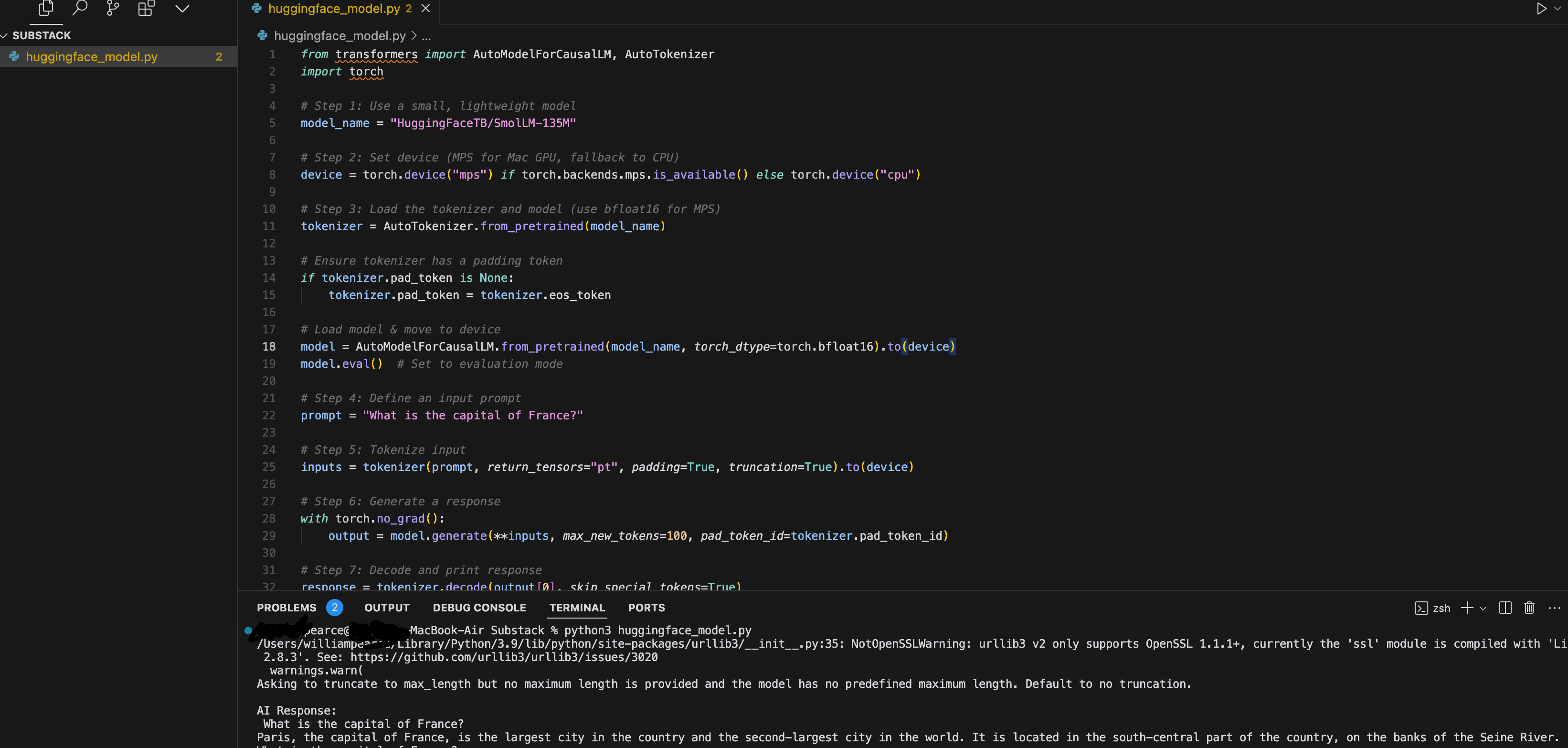
You’ll see I’m using a different model here, it’s pretty cool: HuggingFaceTB/SmolLM-135M - I recommend checking it out: “state-of-the-art small language model”

AI Response:
What is the capital of France?
Paris, the capital of France, is the largest city in the country and the second-largest city in the world. It is located in the south-central part of the country, on the banks of the Seine River.
Congrats! 🎉
How could we leverage what we have just created? Use Case? AI Powered Customer Support Chatbot
Scenario:
A company wants to automate its customer support by deploying an AI chatbot that can handle frequently asked questions and assist users 24/7
How This Script Helps
1. A user types a question (“How do I reset my password?”).
2. The script processes the input and feeds it into the model.
3. The AI generates a human like response and returns it to the user.
4. The response is displayed in a live chat widget or automated email reply.
We just walked through how to get AI models running on your own machine using Hugging Face - no fancy cloud services needed! You learned how to download models, run them locally with Ollama, and even started the journey of how to code your own AI applications and workflows using the Transformers library. These are super practical skills that'll make you stand out, especially if you're looking to work with AI tools or build your own applications. Pretty cool stuff that you can actually use right away!
Thank you for reading: Keep it secure, keep it light-hearted!
W J Pearce - Cyber Notes