



Last Issue: How to run Gemma4 Locally with Claude Code 🌟
Next Issue: Claude Code for Cloud Security: What you should know 🌩️
The core fundamentals remain the same, but the way we interact with them is changing.
In DevSecOps and Cloud Security you need to know how teams are building and shipping code. This is the future.
It’s not just other teams code though, Cloud Security Engineers are still:
• Deploying Terraform, but now with AI assisted security checks built directly into the pipeline.
• Monitoring cloud environments, but now with AI driven alerting and drift detection.
• Writing scripts, but now with AI supported coding tools that accelerate delivery.
• Performing security architecture reviews, but now with AI copilots that help analyse risk faster.
• Working in Linux environments, increasingly enhanced by AI tooling.
• Managing networking, now supported by AI assisted troubleshooting and optimisation.
You can see where this is going….
With that in mind, one of the first skills you’ll use every day is the terminal.
So let’s learn how to use Warp, a modern agentic terminal designed for how security engineers work in 2026.
What we’re going to cover
Installation
What is it
Fun Useful Features
Coding Features
Agent Mode
Installation:
Install here, warp.dev and download the .DMG
or via the CLI with:
brew install --cask warpOr for Windows just got here and install the .exe file:
https://www.warp.dev/windows-terminal
What is it?
When you first open warp, after signing in in etc you’ll be faced with a blank terminal and that’s because warp is just….a terminal. Sort of.
While that's technically true, it’s also so much more.
Modern terminal built from scratch in Rust
AI agent built directly into the terminal
GPU rendered UI for speed
Team collaboration features via Warp Drive
Warp supports all major shells, including Zsh, Bash, Fish, and PowerShell across macOS, Linux, and Windows
Let’s take a look at what it can do now and why in 2026 I think it should be your default terminal.
Fun Useful Features
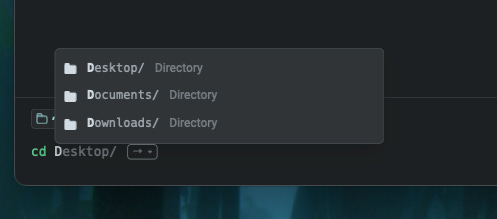
Auto Complete File Path
Okay, starting off with the “Nice to have“ features. Warp has autocomplete, where it shows you a path based on your activity history which is super handy if you can’t remember the exact name/structure of a file path you’ve recently worked on.
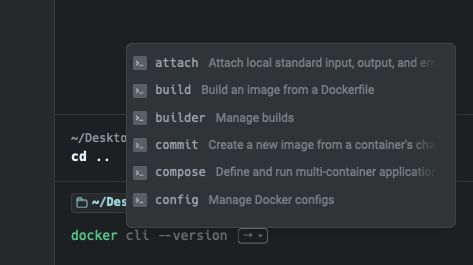
Auto Complete Tool Context
In addition to auto complete for file paths it brings up the relevant options for a tool your using and quick description on what they do. Here I have typed docker and it’s suggesting all the commands I might want to use.
Vertical Split Windows
A nice touch is the vertical window splitting so you can quickly see and select between multiple terminal sessions. Again, not ground breaking but handy.
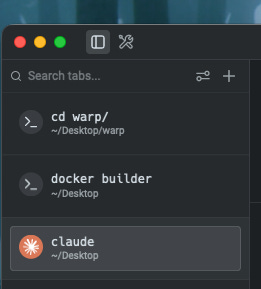
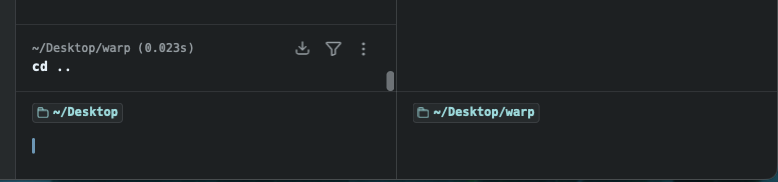
Vertical Split Panes
You can of course, split the same window to have extra context with cmd + d
Block Filtering
Yes I know how to grep, tail etc and you should 100% know how todo this manually but lets be real. Being able to see the results disappear that aren’t relevant is a nice for light work and ESPECIALLY for log hunting quickly
Typing ls
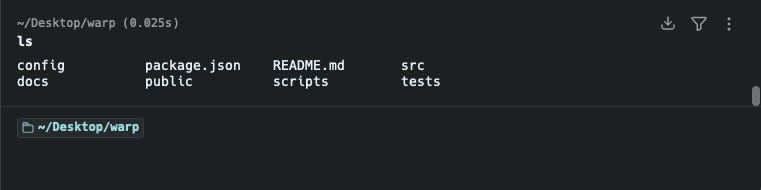
Then filtering out the results with the button in the top right
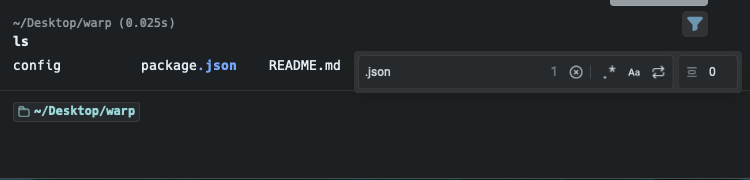
Coding Features
Nice to haves aside, what are some of the features that really make warp worth learning here.
When you’e working on a project you’ve cloned from Github you instantly see a few cool things. Again, not a substitute for learning how todo these thing manually.
